Learn the app

How-To Guides

Seven things worth knowing about Shot Timer Drills, each in a minute or two. Screenshots are from the current iPhone app; the Android app has the same features, laid out for Android.

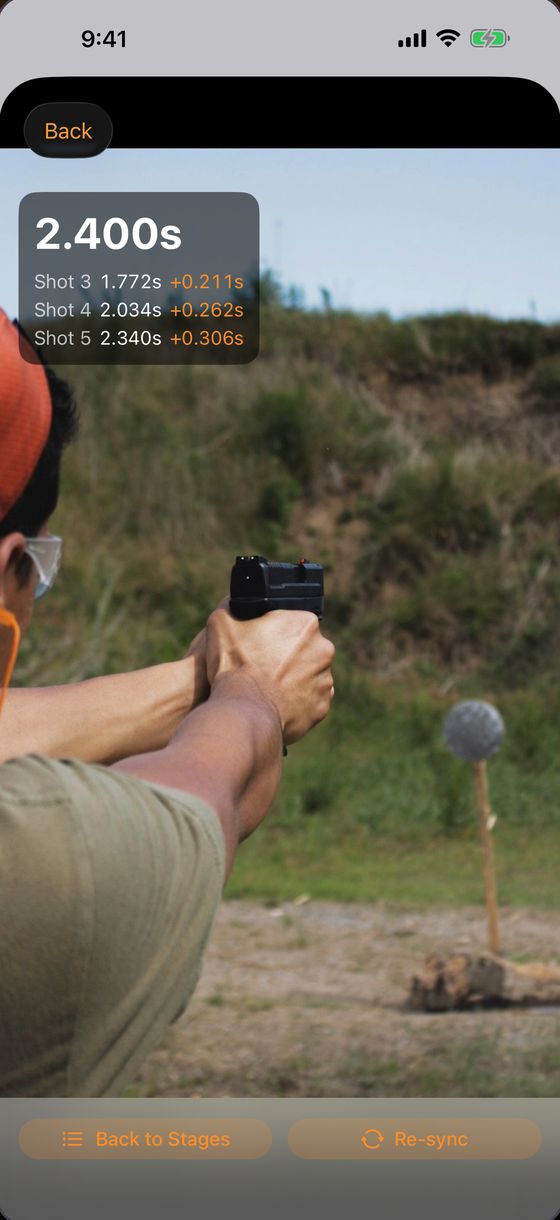
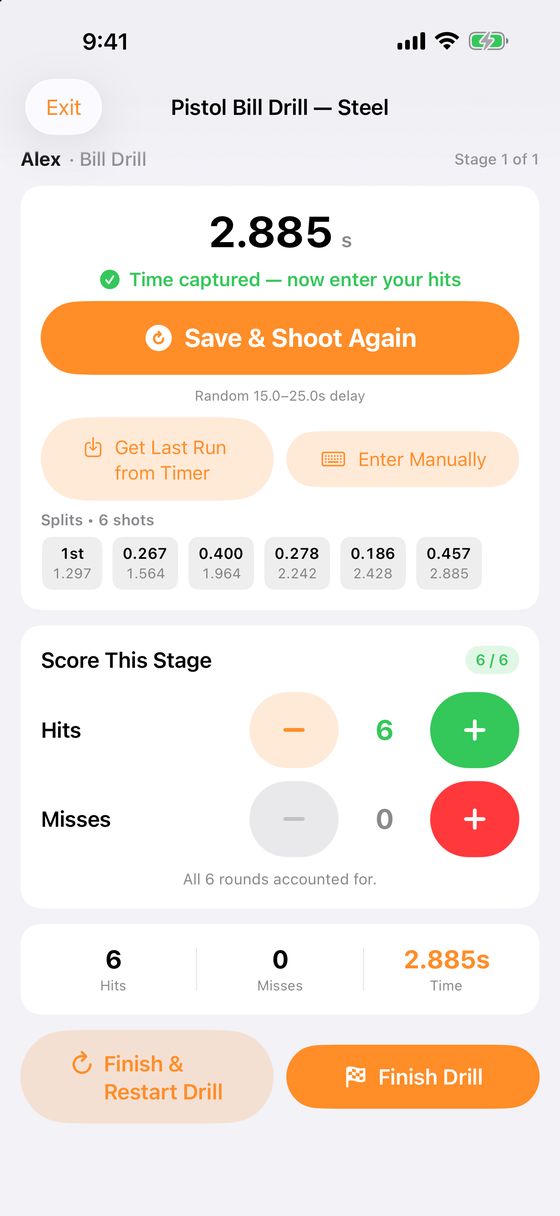
A Bill Drill stage with the captured time, every split, and hit counters

01

Run a drill with your timer

Every drill runs the same way, whether it's one of the built-in standards or one you built yourself:

  1. Open a drill from the Drills tab and tap Start Drill. From Quick Start, Jump Back In or a Range Day you'll see the drill's briefing first; tap Begin Drill.
  2. Tap Shooter Ready. The app arms your timer, and the beep fires after a random delay. You can also just press START on the timer.
  3. Shots come in live. When the string ends, your time and every split are on screen, with nothing to type.
  4. Count hits with the + and − buttons, or tap Fill Remaining as A when every round landed clean.
  5. Tap Save & Shoot Again for another string, or Next Stage / Finish Drill to move on.
Shooting alone? Tap the delay at the top right of the stage and pick Solo Running (15–25s) so you have time to get set. No timer with you? Tap Enter Manually and type your time in.
Dry fire: switch the Drills tab to Dry Fire. With no timer connected, your phone plays the start and par beeps, and you count how many reps were clean.
02 · New

Record video with your times on it

Film every string and get a video with your time and splits on screen, synced to the beep. Record in the app as you shoot, or add a video someone else filmed.

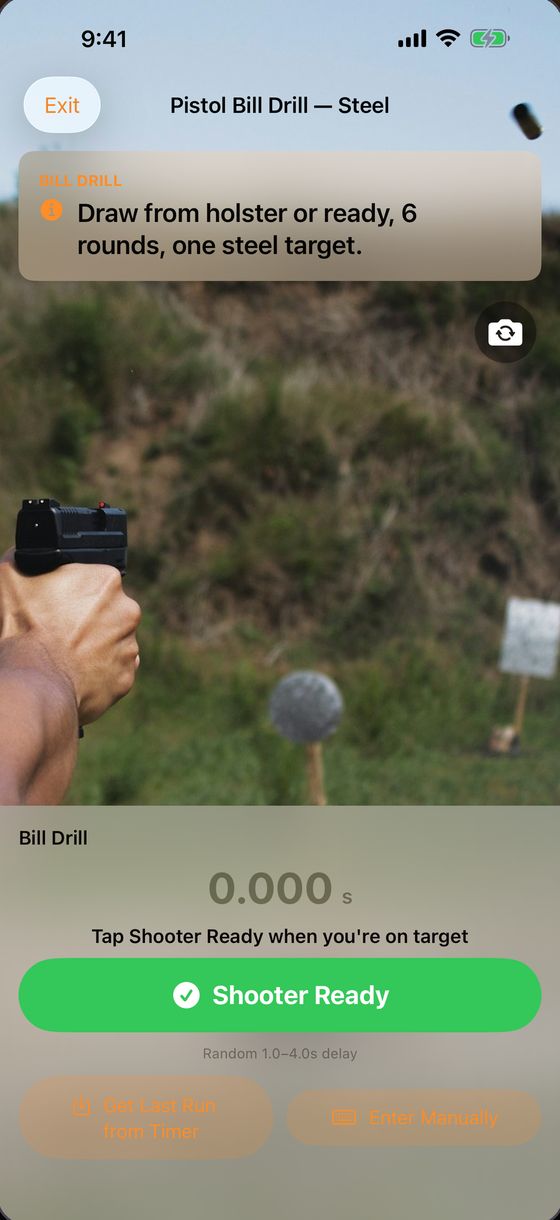
Stage screen showing the camera preview and the Shooter Ready button
Film the string
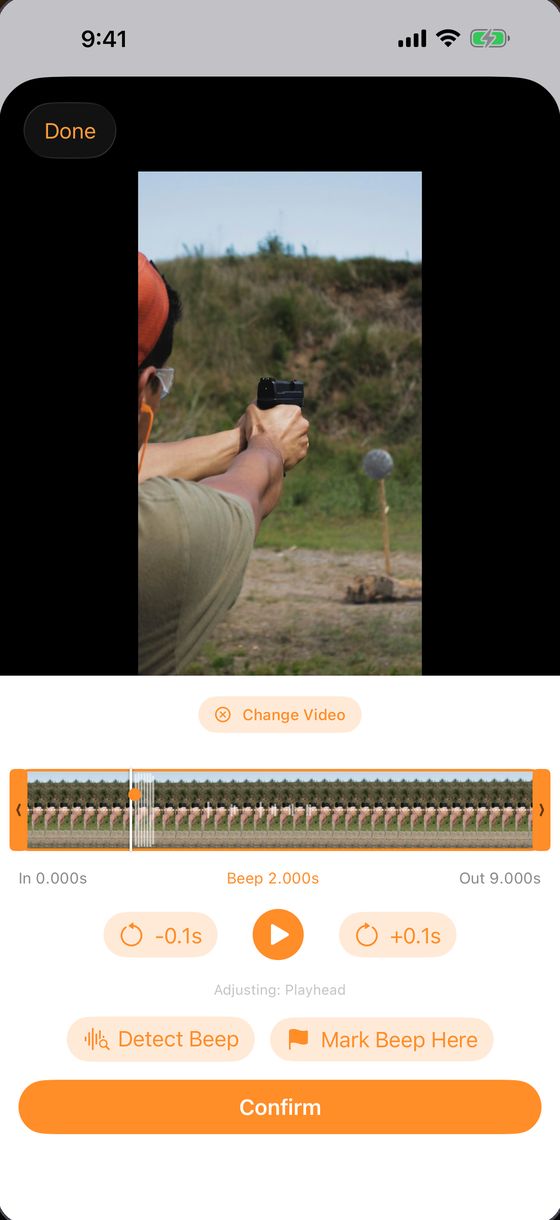
Shot View sync screen with the video filmstrip and in, beep and out points
Sync to the beep
Video of a shooter with the total time and splits on screen
Watch every shot

Record as you shoot

  1. Turn on Record Video. You'll find it on a drill's page, at the top of Quick Start, above your drills in Jump Back In, and on the drill briefing. Allow camera and microphone access when asked.
  2. Set your phone up facing you. The stage screen turns into a camera preview; tap the flip icon at the top right to switch cameras.
  3. Shoot as normal. Recording starts and stops on its own with your timer, one clip per string, already synced to the beep.
  4. When you finish the drill, tap Make Video. The app joins your stages together with title cards and your time and splits on screen.
  5. Tap Share, then Save Video to keep it in Photos, or send it anywhere.
Shooting with friends? Each shooter gets a Make Video button, and Make Joint Video — Everyone puts the whole group in one video, by stage or by shooter.

Add a video filmed elsewhere

  1. Open the run from Results or History. Under Shot View, tap Add Video.
  2. Pick One video for the whole run or A separate video per stage, then Choose Video.
  3. Tap a stage. The app listens for the beep and sets it for you. Drag the in and out handles to trim.
  4. If the beep is off, nudge it with −0.1s and +0.1s, tap Mark Beep Here, or try Detect Beep again. Then tap Confirm.
  5. When every stage has a check mark, tap Export Video. It's saved to Photos.
Each recorded clip is also saved to Photos when you confirm the stage. Clips you haven't made into a video yet can be cleared in Settings → Recorded Drill Clips.
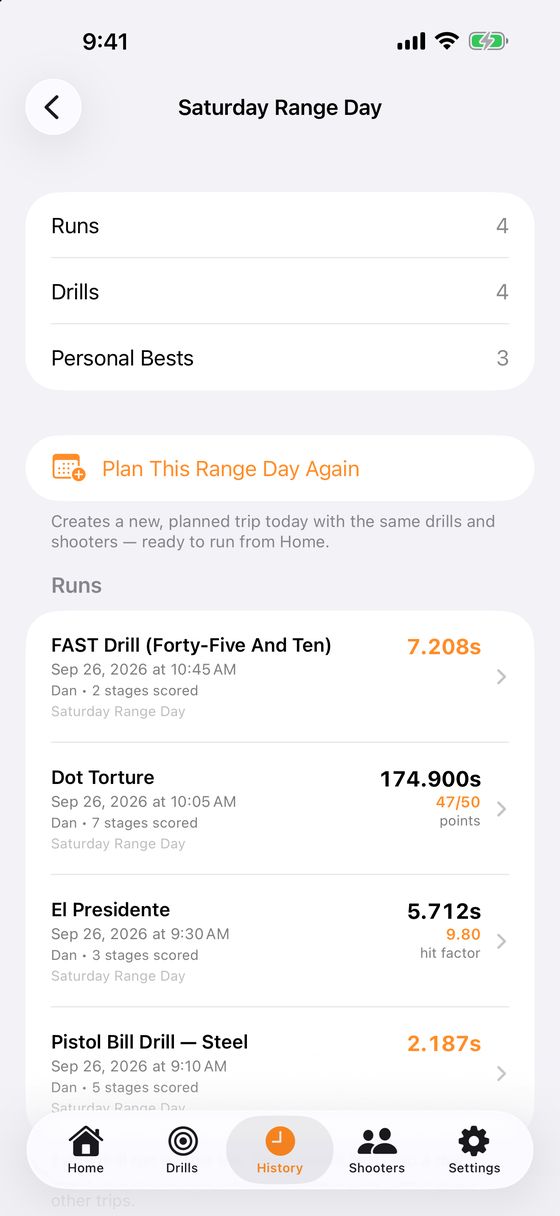
Saturday Range Day summary with overall standings for four shooters

03

Plan a full Range Day

Line up everything you want to run before you leave the house:

  1. Home → Plan Range Trip. Add a title and date, your shooters and the drills you're bringing, then tap Create.
  2. At the range, open the trip from Upcoming & In Progress on Home and tap Run Full Range Day to go through every drill in order. Or tap the play button on any one drill to run it on its own.
  3. Each finished drill gets a green check mark, and Resume Range Day picks up with the next drill you haven't shot.
With several shooters, the trip shows overall standings. Every result also counts toward that drill's own history.
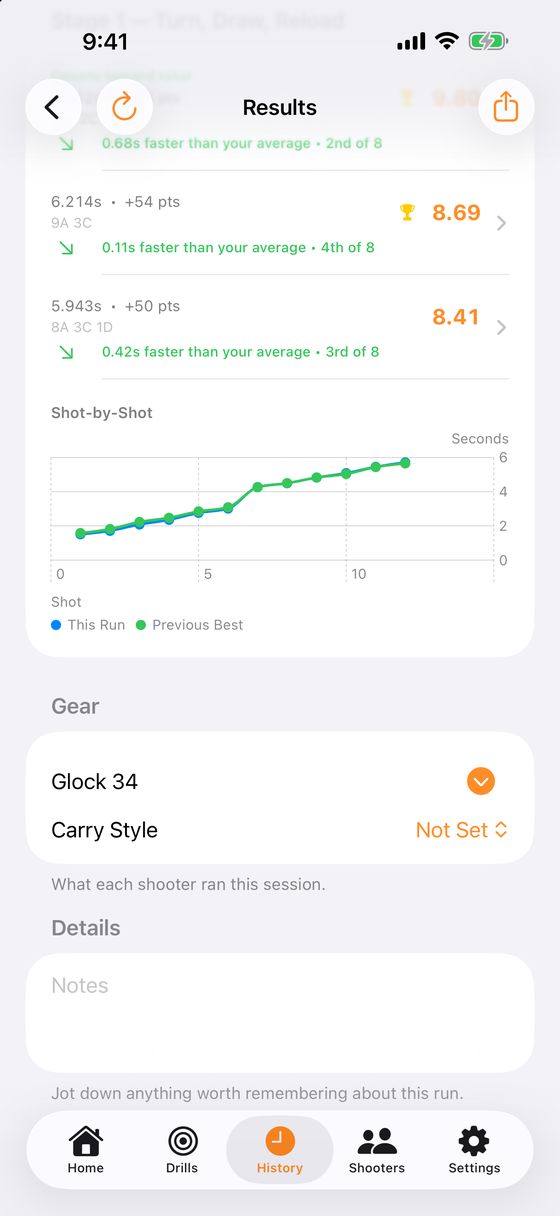
Results screen with a Shot-by-Shot chart comparing this run to the previous best

04

See where you gained or lost time

Every stage on the Results screen has a Shot-by-Shot chart. It plots when each shot broke after the beep, for This Run against your Previous Best on the same stage.

Where the two lines pull apart is where you gained or lost time, so you know which shot to work on, not just the final number.

Each stage also tells you how it compares, like "Your fastest run of this stage" or how much faster you were than your average.
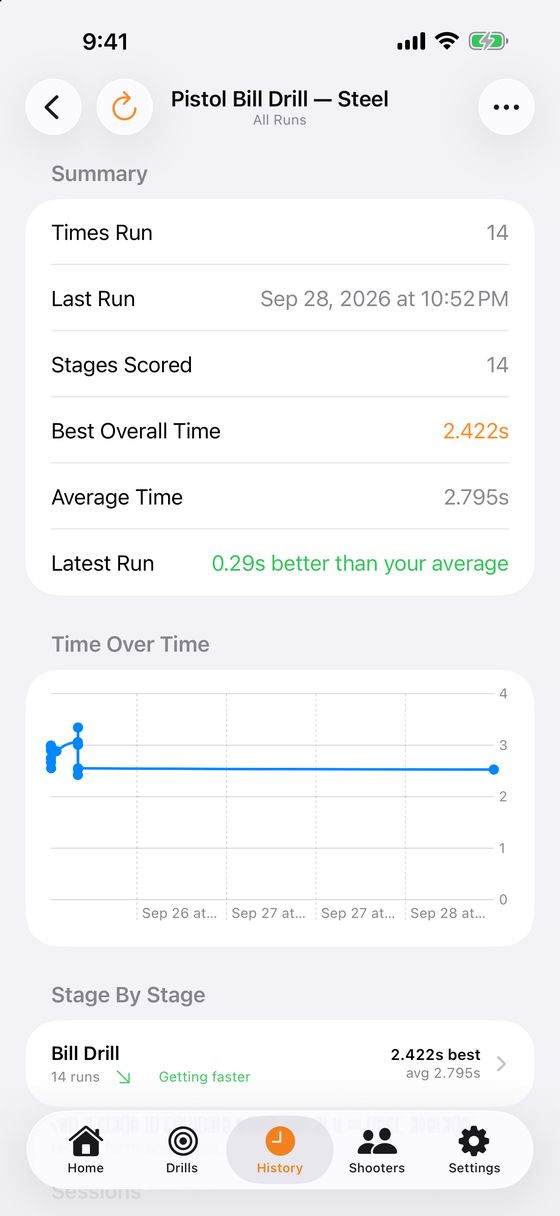
A drill's history with its summary, best time and a time-over-time chart

05

Track your progress

The History tab groups every run By Drill, By Trip or By Date. Below that are an Activity calendar of the days you shot and your Recent Personal Bests.

Tap a drill to see:

  • Summary: times run, best and average
  • Where To Focus: on drills with several stages, the ones costing you the most
  • Stage By Stage results and a trend chart over time
To line up two runs shot by shot, open the drill's … menu and tap Compare Runs.
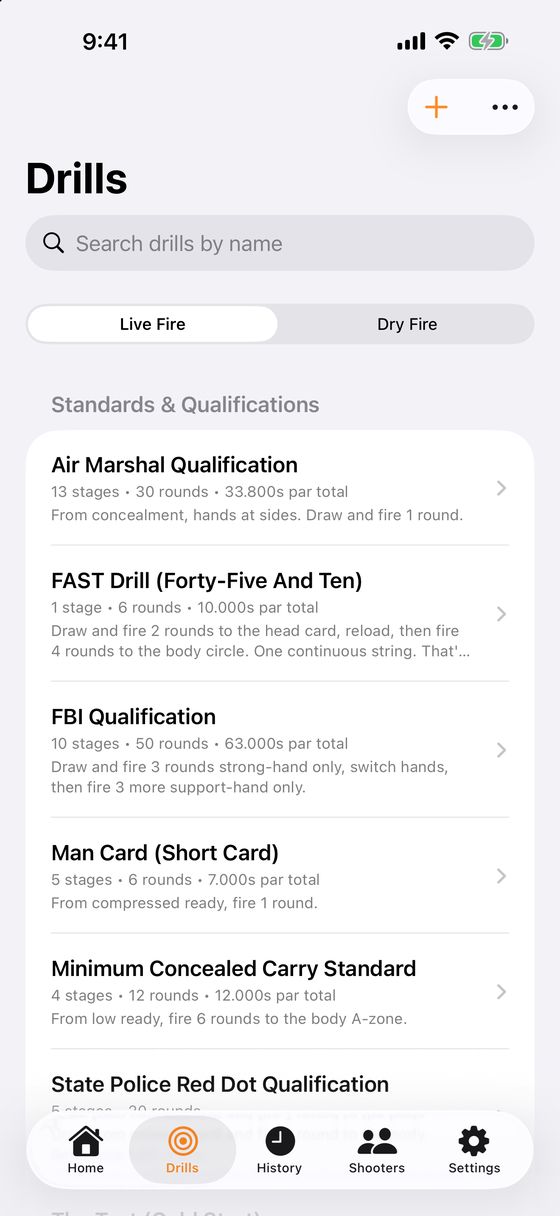
The Drills tab with the Live Fire and Dry Fire switch and a list of standards and qualifications

06

Find, favorite and build drills

The Drills tab holds the built-in standards, qualifications and classics, plus any drills you've built or imported. Switch between Live Fire and Dry Fire at the top.

  • Search by name with the search bar.
  • Swipe right on a drill to Favorite it. Swipe left to Duplicate it as a starting point for a variant, or to Delete it.
  • Tap + to Create New Drill, or Browse Drill Library to add more built-in drills.
  • The … menu imports drills from a spreadsheet file and exports yours.
Building a drill: give it a name, then tap Add Stage (or Duplicate Last Stage). Tap a stage to set its targets, distance, par time, scoring and instructions.
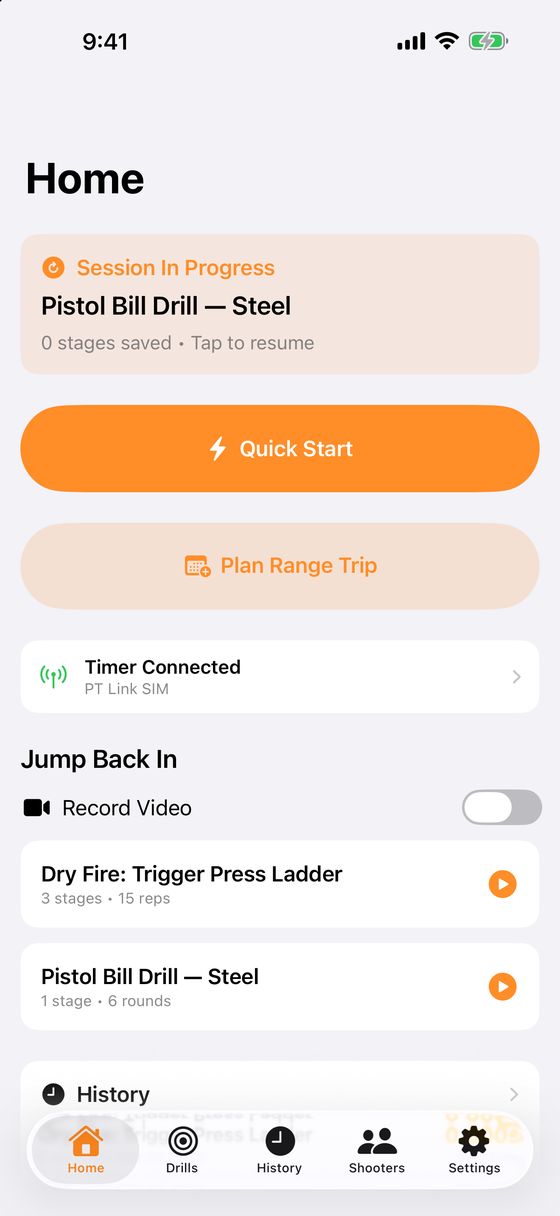
Home screen with Quick Start, Plan Range Trip, timer status and Jump Back In with a Record Video switch

07

Jump back in from Home

  • Quick Start: pick any drill, or free shoot with no drill.
  • Plan Range Trip: set up your next Range Day.
  • Timer status: tap it to connect your shot timer.
  • Jump Back In: the drills you've run most recently, one tap from running again, with a Record Video switch right above them.
  • History: your latest trend at a glance.
If a run gets interrupted (a phone call, or Pause & Exit), Home shows a Session In Progress card so you can pick up where you left off.

Something not covered here? Visit Support or contact us.